Import My DaVinci Resolve Profile for the Launchpad X
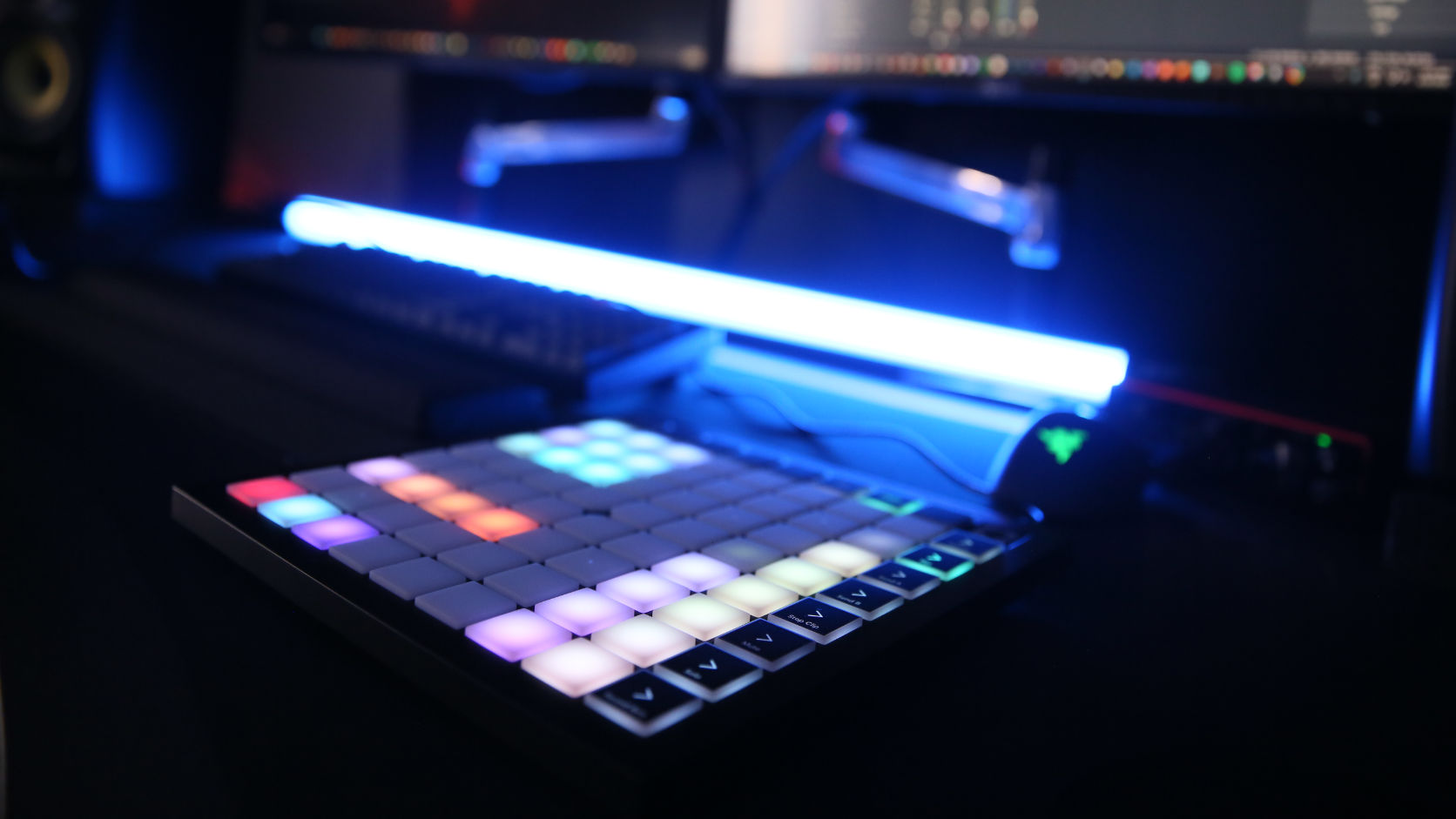
Someone on YouTube asked if I'd share the DaVinci Resolve profile from the Midi2Macro launch video. Happy to. It's two files: a custom mode for the Launchpad X and a profile you import into Midi2Macro. If you own a Launchpad X and use Windows, that's all you need.
One thing to know up front. Midi2Macro doesn't have a smart import yet, one that lets you remap imported macros to your own device as you import them. A profile from someone else only lines up by itself when your computer gives the controller exactly the same name as mine. When it doesn't, you can fix that by hand in the file, and this guide shows you how. A proper remapping import is a feature I'm hoping to add in the future.
On a Mac it should work too, but I built and tested it on Windows. macOS most likely calls the Launchpad X something different, so you'll probably need the rename step further down before the macros map to your device. You'll also want to swap Ctrl for Cmd, which is covered below as well.
If you have a different controller or just a different setup, it takes the same extra step. This guide covers both, along with how importing works under the hood so you can fix it when it doesn't line up.
Load the Launchpad X custom mode
Each pad on a Launchpad sends a MIDI note, and which note depends on the layout the Launchpad is in. My profile expects the notes from a custom mode I set up for Resolve. On any other layout the pads send different notes, so they either do nothing or fire the wrong shortcut.
Download launchpad-x-custom-mode-resolve.syx
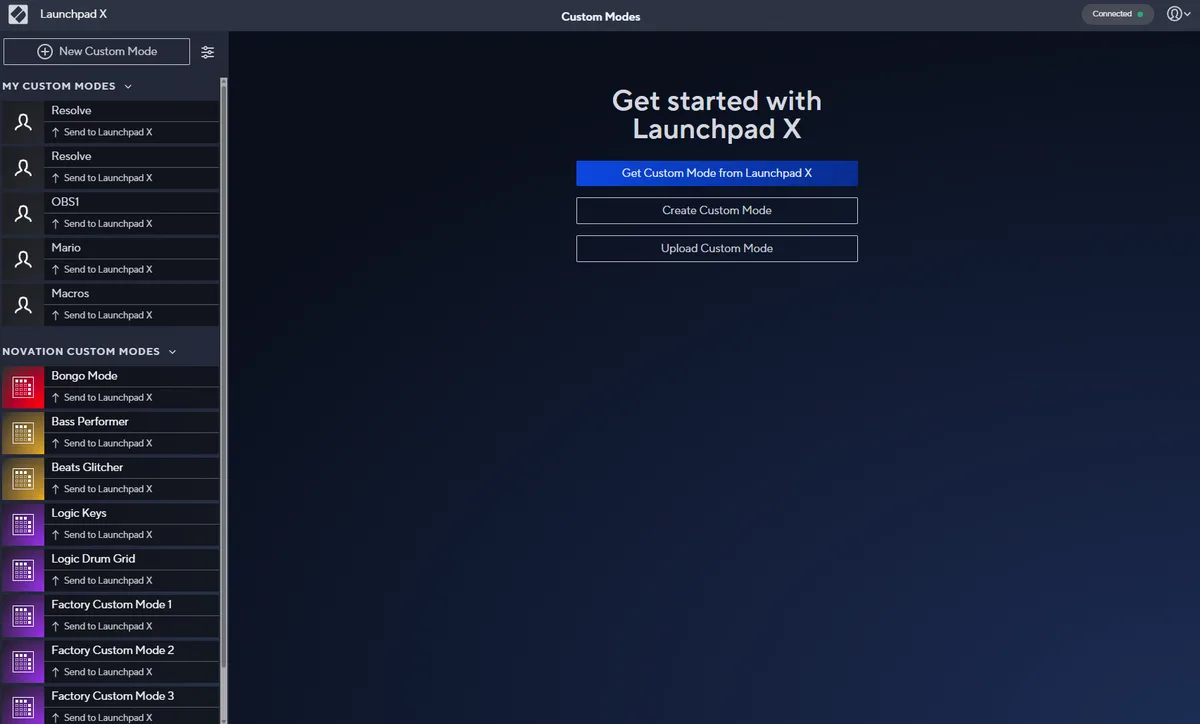
Open Novation Components, either in the browser or the desktop app, with your Launchpad X plugged in. Check it shows Connected in the top right.
Go to Custom Modes, click New Custom Mode, then Upload Custom Mode and pick the
.syxfile you downloaded.
The Resolve layout opens in the editor. Click Send to Launchpad X at the top and pick a custom mode slot.
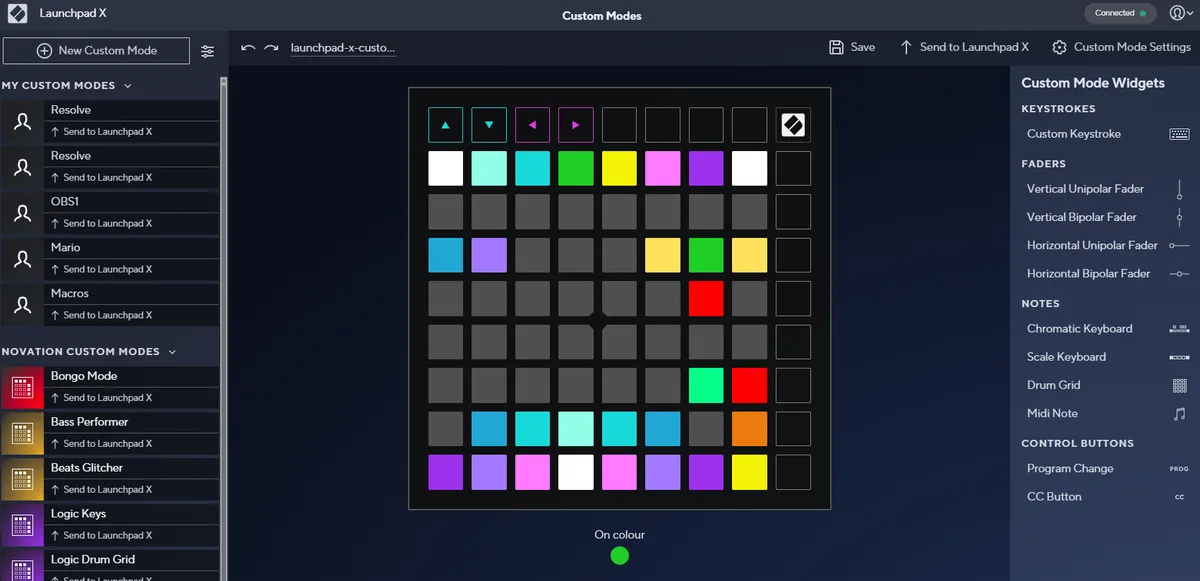
On the Launchpad, switch to that custom mode before you use the profile.
Download the Resolve profile
Download midi2macro-resolve-profile.json
It holds one profile called Resolve with 30 macros: playback, trimming, undo and redo, page switching and one multi-step macro that splits a clip and tidies up after it. All of them are keyboard shortcuts, so nothing depends on files or apps on my computer. For more on which Resolve shortcuts are worth putting on pads, see the DaVinci Resolve MIDI controller guide.
Import it
Open Midi2Macro and go to File, Manage Macros...
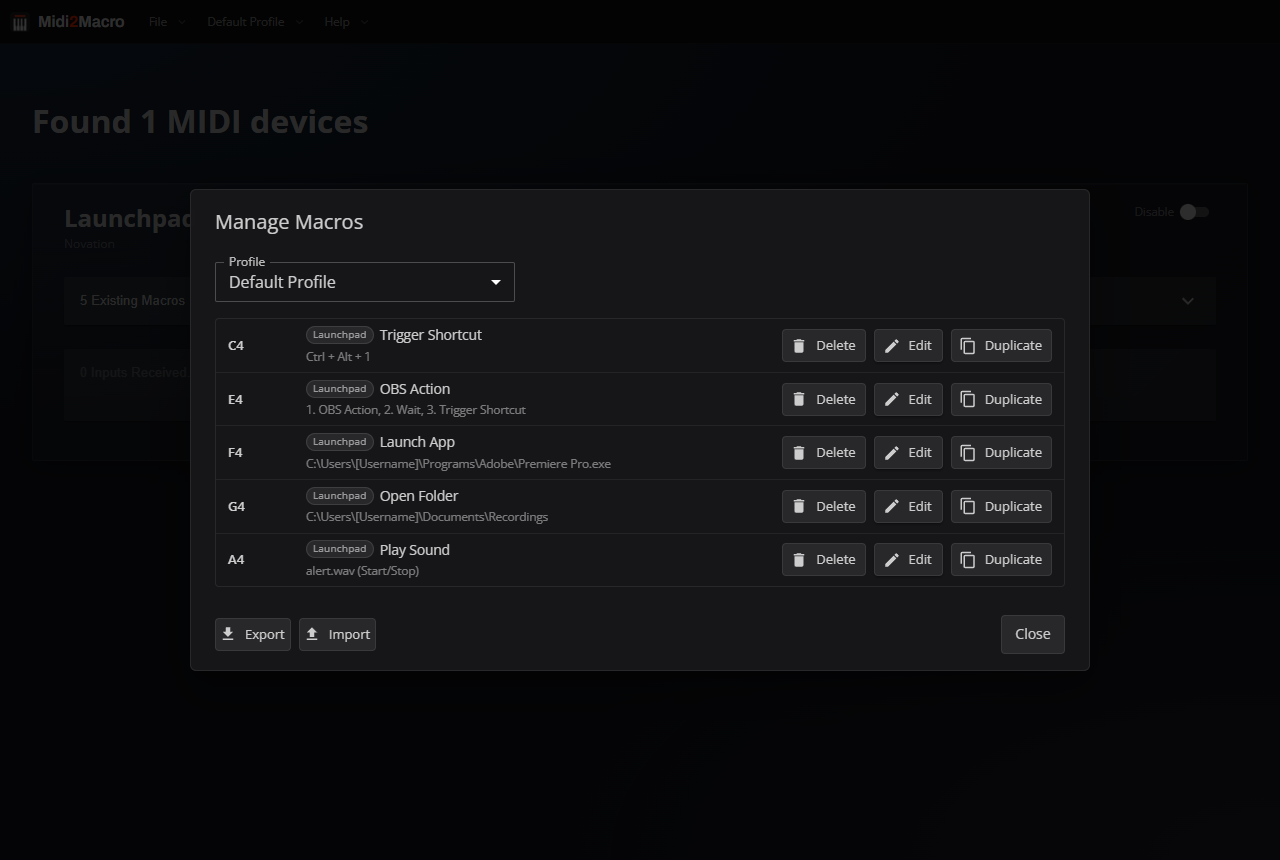
Click Import and pick the file you downloaded.
Set the mode to Merge and click Confirm Import.
Merge adds the Resolve profile next to the profiles you already have. Replace All throws away all of your current profiles and macros and keeps only what's in the file. Unless you're starting from scratch, Merge is the one you want.
Why it might not work straight away
Midi2Macro remembers each macro by two things: the name your computer gives the MIDI device and the note or CC the pad sends. My Launchpad X on Windows reports itself as Focusrite-Novation / MIDIIN2 (LPX MIDI), so a pad that sends C2 is stored like this:
"Focusrite-Novation-MIDIIN2 (LPX MIDI)-C2": {
  "steps": [
    {
      "type": "Trigger Shortcut",
      "keys": ["CONTROL", "Y"],
      "midiNote": {
        "id": "Focusrite-Novation-MIDIIN2 (LPX MIDI)-C2",
        "deviceId": "Focusrite-Novation-MIDIIN2 (LPX MIDI)",
        "deviceName": "Focusrite-Novation MIDIIN2 (LPX MIDI)",
        "name": "C2"
      }
    }
  ]
}
When you press a pad, Midi2Macro builds the same kind of id from your device's name and looks it up. If your computer calls the device something else, nothing matches and the pads do nothing. The import itself still succeeds, which is what makes this confusing the first time.
The same controller can show up under different names:
On a Mac the Launchpad X most likely reports a different name to the one Windows uses.
Windows sometimes adds a number in front, like
2- Launchpad X, when several MIDI devices are plugged in.A different driver or a firmware update can change the name.
A different controller will obviously have its own name, and its pads will send different notes too. The custom mode above only works on a Launchpad X.
The fix is to swap my device's name for yours in the file before you import it.
Find your device's name
The easiest place to find the exact name is Midi2Macro's own macros file.
In Midi2Macro, assign any shortcut to any pad on your controller. This makes sure your device appears in the file. You can delete it afterwards.
Open the macros file in a text editor:
| System | Location |
|---|---|
| Windows | C:\Users\{username}\AppData\Roaming\Midi2Macro\Midi2Macro\macros.json |
| Mac | ~/Library/Application Support/Midi2Macro/Midi2Macro/macros.json |
Search for
deviceIdand copy the value next to it. Also copy thedeviceNamevalue, which is the same name with a space instead of the first hyphen.
Only read this file. Midi2Macro keeps its macros in memory while it runs and writes them back to this file, so any edits you make here while the app is open get overwritten.
On a Mac you can open the folder from Finder with Go, Go to Folder and pasting the path. The Library folder is hidden by default, which is why it's easy to miss.
Replace the names
My device's name appears in the file in two slightly different forms, and you replace each one with the matching value from your own macros.json. They look almost the same. The only difference is the character between Novation and MIDIIN2, a hyphen in the first and a space in the second.
| Find in my file | Character after Novation | Where it's used | Replace with your |
|---|---|---|---|
Focusrite-Novation-MIDIIN2 (LPX MIDI) | hyphen | Macro keys, id and deviceId | deviceId |
Focusrite-Novation MIDIIN2 (LPX MIDI) | space | deviceName | deviceName |
The hyphen version is the one that matters for matching. The space version is only the label Midi2Macro shows in its lists, but it's worth fixing so the import doesn't show my device name everywhere.
Search for each one exactly as written. Because of that one character, replacing the first doesn't touch the second, so you need both.
Any plain text editor will do. Notepad on Windows and TextEdit on a Mac are already installed.
Open
midi2macro-resolve-profile.jsonin the editor. In TextEdit, choose Format, Make Plain Text first.Open Find and Replace. That's Ctrl+H in Notepad and Cmd+Option+F in TextEdit.
Paste the hyphen version into Find, paste your
deviceIdinto Replace and click Replace All.Do the same for the space version and your
deviceName.Save the file.
On a Mac, swap Ctrl for Cmd
I built this profile on Windows, so the shortcuts use Ctrl where Resolve on a Mac uses Cmd. Undo is stored as CONTROL + Z, which on a Mac does nothing useful in Resolve. Alt works as is because Midi2Macro treats it as Option on a Mac.
While you have the file open in TextEdit, use Find and Replace again to swap every "CONTROL" for "COMMAND". Keep the quotes in the search. They make sure only the key names change and nothing else in the file.
Import and test
Import the edited file with Merge as above, switch to the Resolve profile and press a pad. If the shortcut fires, you're done.
If nothing happens, check the pad shows up in Midi2Macro's note history. If it does, the device name still doesn't match, so compare the deviceId in the edited file with the one in your macros.json character by character. Spaces and brackets are the usual culprits. If the pad fires the wrong shortcut, your controller is sending different notes to mine. On a Launchpad X, check it's in the custom mode from above. On any other controller that's normal, so reassign those pads in the app.
Importing the same file twice is safe. With Merge it updates the existing Resolve profile instead of adding a second one.
Smart import, hopefully soon
Editing JSON by hand to import a profile isn't how it should work. I'm hoping to add an import option that lets you pick which of your connected devices an imported profile should use, so the name swapping above happens for you. It's on the list for 2.1, though I can't promise when it might become a reality. Until then, hopefully this guide will help get you there.